Skip to content

IT Help Blog

CKA Road Trip: UP-TO-DATE Was 0 — But Nothing Was Broken

The task said UP-TO-DATE should be 1. It was showing 0. I assumed something was broken and went the long way round. The issue was one field.


The Symptom

k get deploy stream-deployment
# NAME                READY   UP-TO-DATE   AVAILABLE   AGE
# stream-deployment   0/0     0            0           69s

Task: UP-TO-DATE is showing 0, it should be 1. Troubleshoot and fix.


What I Did (the Long Way)

k get deploy stream-deployment -o yaml > deploy.yml
vim deploy.yml          # changed replicas: 0 → 1
k delete deploy stream-deployment --force
k apply -f deploy.yml

It worked. But it was 4 steps, and the force delete is dangerous in prod — bypasses graceful termination. If the pod was doing anything, that's data loss risk.


What I Should Have Done

k scale deploy stream-deployment --replicas=1

One command. No file, no delete, no risk.

Or if editing more than just replicas:

k edit deploy stream-deployment

Live YAML in the editor. Change what you need, save, done. No delete needed — ever.


What UP-TO-DATE Actually Means

READY = running / desired. 0/0 means you asked for 0, you got 0. Not broken.

UP-TO-DATE = how many pods are running the latest pod template spec — latest image, env vars, config. Are your pods on the current version of the deployment?

UP-TO-DATE: 0 when replicas: 0 is correct math. Nothing to update. The actual issue was replicas: 0 in the spec. UP-TO-DATE was a red herring.


When UP-TO-DATE Actually Matters

k get deploy my-deploy
# NAME        READY   UP-TO-DATE   AVAILABLE
# my-deploy   3/3     1            3

3 pods running, only 1 on the new version. Rolling update in progress — the other 2 are still on the old template. That is the signal UP-TO-DATE is for. Not deployment health — rollout progress.


The Rule

READY left/right = reality vs desired. If they don't match, something is wrong.

UP-TO-DATE only means something when replicas > 0 and you have changed the pod template. When you see 0/0, check spec.replicas first.

k get deploy stream-deployment -o jsonpath='{.spec.replicas}'
# 0

Root cause in one shot.

CKA Road Trip: You Don't Memorise kubectl — You Discover It

The advice is always: here is a list of kubectl commands, memorise them. It doesn't work like that. You can't look up something if you don't know it exists.


The Problem

After the replicas exercise, the fix was k scale. Simple. But what if I didn't know scale existed? I would have gone straight to k edit or k get -o yaml and edited the file directly. Which works, but it's slower.

The issue isn't syntax. It's not knowing which commands exist in the first place.


The Chicken and Egg

You can't --help a command you don't know exists. And memorising a list of 30 commands without context doesn't stick — you need to use them in the right situation 3 or 4 times before they become muscle memory.

So the question is: how do you find out what exists without memorising everything upfront?


One Command Solves It

kubectl --help

Run it once. It lists every top-level command grouped by category. You see scale, set, rollout, patch, label, annotate — now you know they exist. That is the only thing worth skimming upfront. Not syntax, not flags. Just what is there.


Then --help Does the Rest

Once you know a command exists, the syntax is one flag away:

k scale --help
k set --help
k rollout --help

Exact syntax, flags, and examples on the spot. You look it up when you need it. After 3 or 4 times in real exercises, it sticks without trying.


When to Use k edit Instead

Not everything has a dedicated command. If you need to change something that k scale, k set, or k rollout don't cover — k edit is the right tool. Live YAML, change what you need, save. No file, no apply, no delete.

The dedicated commands are faster for what they cover. k edit covers everything else.


The Workflow

need to change something
is there a dedicated command?
        ↓ not sure
kubectl --help → scan → find it or confirm it doesn't exist
k <command> --help → syntax → done
        ↓ or no command exists
k edit → change the field directly

One skim of kubectl --help gives you the map. Everything else on demand.

CKA Road Trip: Namespace Not Found

Applied a deployment manifest. Got an error before a single pod even tried to start. Fixed it in one command, but it forced me to think about what namespaces actually are.


The Symptom

k apply -f frontend-deployment.yaml
# Error from server (NotFound): error when creating "frontend-deployment.yaml": namespaces "nginx-ns" not found

Nothing about the image, nothing about the container. The API server refused to process the request entirely because the target namespace didn't exist.


What a Namespace Actually Is

A namespace is a scope for resource names. When Kubernetes stores a resource in etcd, the key includes the namespace:

/registry/deployments/nginx-ns/frontend-deployment
/registry/deployments/default/frontend-deployment

Those are two different keys. Same name, no conflict. The namespace is part of the path — that's all it is.

When you run kubectl get pods, the API server filters by namespace. You're not entering an isolated environment — you're scoping the query.

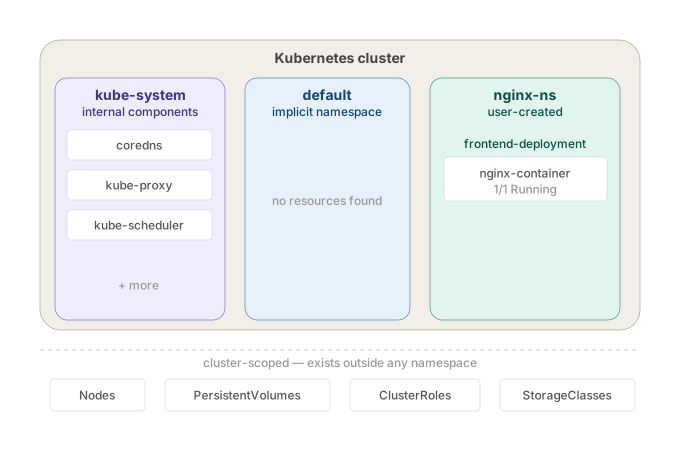
cluster
├── namespace: default       ← where everything lands if you don't specify
├── namespace: kube-system   ← Kubernetes internal components
└── namespace: nginx-ns      ← doesn't exist until you create it

It does not isolate network traffic. A pod in nginx-ns can reach a pod in default by IP with no restriction. Pods from every namespace land on the same nodes. There's no kernel-level separation of any kind. It's a naming boundary, not a network or compute boundary.

It means namespaces are purely organisational. Kubernetes doesn't build any walls between them at the infrastructure level.

Network: Two pods in different namespaces can talk to each other directly by pod IP. No firewall, no routing rule, nothing blocking it. The namespace label on the pod makes zero difference to how packets flow.

Nodes: You have 3 nodes in your cluster. A pod from kube-system and a pod from nginx-ns can both end up scheduled on node01. The scheduler doesn't segregate by namespace.

Kernel: Container isolation (namespaces in the Linux sense — pid, net, mount) happens at the container runtime level, not the Kubernetes namespace level. A Kubernetes namespace does nothing to the underlying Linux process isolation.

So if someone tells you "put this in a separate namespace for security" — that's meaningless on its own. The namespace just stops name collisions. It doesn't stop traffic, it doesn't stop resource contention, it doesn't sandbox anything. To actually isolate traffic between namespaces you need NetworkPolicies on top.


Why Kubernetes Won't Create It Automatically

Intentional. Kubernetes has no way to know if nginx-ns in your manifest is:

  • a namespace you meant to create
  • a typo (nginx-n instead of nginx-ns)
  • a namespace that should already exist from a previous step

Auto-creating it would silently mask config mistakes. It fails loudly instead. If you're deploying into a namespace, that namespace is infrastructure — it should already exist.


The Fix

k create ns nginx-ns
k apply -f frontend-deployment.yaml

Or declaratively:

apiVersion: v1
kind: Namespace
metadata:
  name: nginx-ns

Apply the namespace file first, then the deployment. Namespace as code — that's the production pattern.


Querying Across Namespaces

k get pods                 # default namespace only
k get pods -n nginx-ns     # specific namespace
k get pods -A              # all namespaces

If you forget -n and your pod isn't in default, you'll get No resources found — looks like the pod doesn't exist. It does. Wrong namespace.


Setting a Default Namespace

k config set-context --current --namespace=nginx-ns

All kubectl commands now target nginx-ns without -n. Useful during exam tasks scoped to one namespace. Reset it when done.


The Takeaway

Namespaces don't create themselves. The NotFound error isn't about your deployment — it's about missing infrastructure the deployment depends on. Namespace first, resources second.

CKA Road Trip: Pod Pending — Three PV/PVC Bugs

database-deployment pods stuck in Pending. The fix required three separate corrections before anything ran.


The Symptom

k get pods
# database-deployment-5bd4f5bc58-2gl9m   0/1   Pending   0   4s

k describe pod database-deployment-5bd4f5bc58-2gl9m
# FailedScheduling: pod has unbound immediate PersistentVolumeClaims

Pod never scheduled. No node assigned.

That message is generic — it's the scheduler saying the PVC isn't in Bound state. It doesn't tell you why. The scheduler's only job is placing pods on nodes — it sees an unbound PVC and stops there.

The actual reason lives one level deeper:

k describe pvc postgres-pvc
# Cannot bind to requested volume "postgres-pv": requested PV is too small
# Cannot bind to requested volume "postgres-pv": incompatible accessMode

The diagnostic chain when a pod is Pending with storage:

k describe pod   →  tells you WHAT (PVC unbound)
k describe pvc   →  tells you WHY (size / accessMode / name mismatch)

Always go to k describe pvc when you see that message. Pod describe will never give you the PV/PVC detail.


Bug 1 — Wrong PVC name in the deployment

The deployment referenced postgres-db-pvc. The actual PVC in the cluster was named postgres-pvc. Kubernetes couldn't find it.

k edit deploy database-deployment
# fix claimName: postgres-db-pvc → postgres-pvc

New pod created. Still Pending.


Bug 2 — PV too small

k describe pvc postgres-pvc
# Cannot bind to requested volume "postgres-pv": requested PV is too small

PVC requested 150Mi. PV capacity was 100Mi. A PVC cannot bind to a PV smaller than its request.

k edit pv postgres-pv
# change capacity.storage: 100Mi → 150Mi

Still Pending. One more issue.


Bug 3 — Access mode mismatch

k describe pvc postgres-pvc
# Cannot bind to requested volume "postgres-pv": incompatible accessMode

PVC was ReadWriteMany. PV was ReadWriteOnce. They must match exactly.

PVCs are mostly immutable — you can't edit accessModes on a live PVC:

k edit pvc postgres-pvc
# error: persistentvolumeclaims "postgres-pvc" is invalid

Only way out is delete and recreate:

k get pvc postgres-pvc -o yaml > pvc.yml
k delete pvc postgres-pvc --force
# edit pvc.yml: accessModes: ReadWriteMany → ReadWriteOnce
k apply -f pvc.yml

Forcing the pods to pick up the fix

Editing the PV or recreating the PVC doesn't restart the pods. The deployment has no way of knowing something changed. Force new pods with:

k rollout restart deploy database-deployment

This patches the deployment with a restart timestamp, triggering a rolling update — old pods terminate, new pods come up and attempt the mount against the now-bound PVC.

k get pods
# database-deployment-645c9cf4f-txwpq   1/1   Running   0   22s

The binding rules

For a PVC to bind to a PV, three things must align:

storageClassName   ← same on both
capacity           ← PV must be >= PVC request  
accessModes        ← must match exactly

All three were wrong here. Check them first whenever a PVC is stuck in Pending.


The Takeaway

k describe pvc gives you the exact reason binding failed — not k describe pod. Fix the PV if possible, delete and recreate the PVC if the field is immutable, then rollout restart to force pods to remount.

CKA Road Trip: Three Things Called "name" in a ConfigMap Volume Mount

This tripped me up. The same word name appears three times in the same yaml block and they all mean different things.


The Yaml

spec:
  containers:
  - name: nginx-container
    volumeMounts:
    - name: nginx-config          # (A) internal label — links to volumes below
      mountPath: /etc/nginx/nginx.conf

  volumes:
  - name: nginx-config            # (A) same internal label — must match above
    configMap:
      name: nginx-configmap       # (B) the actual ConfigMap object in Kubernetes

What Each One Is

(A) nginx-config — appears twice, in volumeMounts and volumes. This is just an internal label you make up. It's the link between the two blocks. Could be called foo, my-vol, whatever — doesn't matter as long as both sides match each other.

(B) nginx-configmap — this is the actual Kubernetes object name. What you see when you run k get cm. This must match exactly or the pod fails with:

MountVolume.SetUp failed: configmap "nginx-configuration" not found

To Make It Clearer

Rename the internal label to something obviously different:

spec:
  containers:
  - name: nginx-container
    volumeMounts:
    - name: my-internal-label           # (A) made up name
      mountPath: /etc/nginx/nginx.conf

  volumes:
  - name: my-internal-label             # (A) must match above
    configMap:
      name: nginx-configmap             # (B) real ConfigMap object name

Identical result. The internal label is just plumbing — it exists only to connect volumeMounts to volumes. The ConfigMap name is what actually matters.


The One Rule

volumes.name and volumeMounts.name must match each other — they're the same internal label.

configMap.name must match the actual ConfigMap object in the cluster — check with k get cm.

They don't have to look similar. The exercise used nginx-config for the label and nginx-configmap for the object which made them look like the same thing. They're not.

CKA Road Trip: Kubernetes Secrets — Env Var or File?

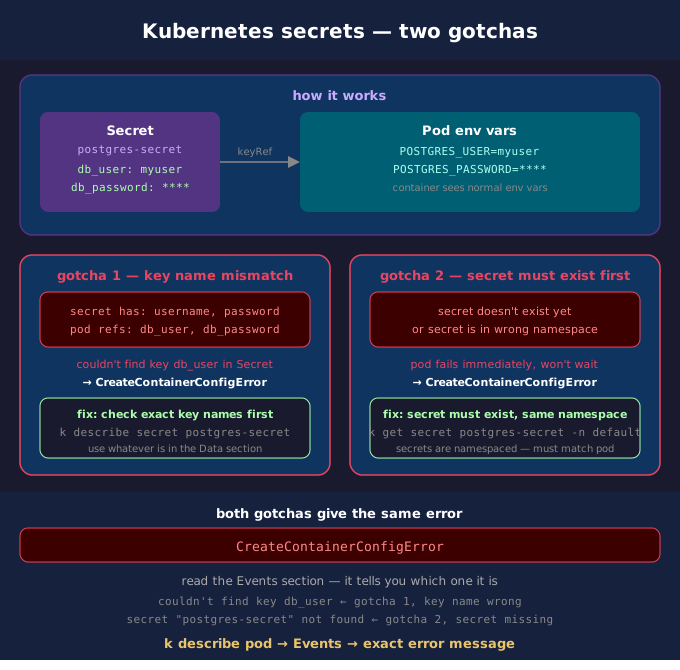
The pod wouldn't start. CreateContainerConfigError. The secret existed. The fix was one word — the key name in the deployment didn't match the key name in the secret.


What a Secret Is

A Secret stores sensitive data — passwords, tokens, keys. Base64 encoded, not encrypted by default. You reference it in a pod instead of hardcoding values in the yaml.

kubectl create secret generic postgres-secret \
  --from-literal=db_user=myuser \
  --from-literal=db_password=mypassword

k describe secret postgres-secret
# Data
# ====
# db_password:  10 bytes
# db_user:      6 bytes

Two Ways to Use a Secret in a Pod

Option 1 — Environment variable

Kubernetes reads the secret, extracts the value, and injects it as an env var before the container starts. The container has no idea it came from a secret.

spec:
  containers:
  - name: postgres-container
    image: postgres:latest
    env:                              # inside the container spec
    - name: POSTGRES_USER            # what the env var is called inside the container
      valueFrom:
        secretKeyRef:
          name: postgres-secret      # the Secret object name
          key: db_user               # the key inside that secret
    - name: POSTGRES_PASSWORD
      valueFrom:
        secretKeyRef:
          name: postgres-secret
          key: db_password

Inside the container:

echo $POSTGRES_USER      # myuser
echo $POSTGRES_PASSWORD  # mypassword

Option 2 — File mount

volumeMounts is inside the container spec — it says where to see the files. volumes is at pod spec level outside containers — it declares what the storage is. The name field links the two together.

spec:
  containers:
  - name: postgres-container
    image: postgres:latest
    volumeMounts:                     # inside container spec
    - name: secret-vol                # references the volume below
      mountPath: /etc/secrets         # where files appear inside the container
  volumes:                            # pod spec level, outside containers
  - name: secret-vol                  # matches the name in volumeMounts
    secret:
      secretName: postgres-secret     # the Secret object

Inside the container:

cat /etc/secrets/db_user       # myuser
cat /etc/secrets/db_password   # mypassword

This puts the secret values as files on disk inside the container:

/etc/secrets/db_user       ← contains "myuser"
/etc/secrets/db_password   ← contains "mypassword"

The container reads the files instead of env vars. Same secret, different delivery mechanism.


What Broke in This Exercise

The secret had keys username and password. The deployment was referencing db_user and db_password.

Error: couldn't find key db_user in Secret default/postgres-secret

Key name in the pod spec didn't match key name in the secret. Fix: always check the exact key names with k describe secret before writing the pod spec. Use whatever is in the Data section, exactly as written.


Env Var vs File — When to Use Which

Use env var when: - The app reads configuration from environment variables (most 12-factor apps) - Simple values like passwords, usernames, API keys - You don't control the app code — it already expects env vars (postgres, redis, etc.)

Use file mount when: - The app reads config from a file path (TLS certificates, kubeconfig, SSH keys) - The secret is large or structured (a full config file, a JSON credentials file) - You need the app to pick up secret rotation without restarting — file mounts update automatically, env vars don't

CKA Road Trip: CronJob Keeps Failing — Two Bugs, One Exercise

A cronjob running curl kept erroring with exit code 6. Fixed it, but only after realising I'd forgotten how services actually work. Two bugs, both fundamental.


The Symptom

k get pods
# cka-cronjob-xxx   0/1   Error   5   4m
# cka-pod           1/1   Running 0   4m

k logs cka-cronjob-xxx
# curl: (6) Could not resolve host: cka-pod

Exit code 6 in curl = DNS resolution failed. The host doesn't exist or can't be resolved.


How Services Actually Work — The Part I Forgot

A service doesn't know about pods by name. It finds pods using label selectors. The service defines a selector like app=cka-pod, Kubernetes finds all pods with that label, and builds an Endpoints list from their IPs. Traffic to the ClusterIP gets routed to those endpoints.

service selector: app=cka-pod
find pods with label app=cka-pod
build Endpoints list (pod IPs)
ClusterIP routes traffic there

If no pods have matching labels → Endpoints: <none> → traffic goes nowhere.


DNS — Pods vs Services

Every service gets a DNS entry automatically:

<service-name>.<namespace>.svc.cluster.local

Within the same namespace, just the service name works:

curl cka-service   # works — service has a DNS entry
curl cka-pod       # fails — pod names don't get DNS entries

Pods don't get DNS entries by default. Only services do. Curling a pod name directly will always fail with exit code 6.


The Two Bugs

Bug 1 — pod missing labels

k describe pod cka-pod
# Labels: <none>    ← nothing

The service selector was app=cka-pod but the pod had no labels. So:

k describe svc cka-service
# Endpoints:   ← empty, selector matches nothing

The service existed. The pod existed. But they weren't connected because the label was missing.

Bug 2 — cronjob curling the wrong hostname

k describe pod cka-cronjob-xxx
# Command: curl cka-pod   ← wrong

cka-pod is a pod name, not a DNS hostname. Should be cka-service.


The Fix

# fix 1 — add the missing label to the pod
k label pod cka-pod app=cka-pod

# verify the service now has endpoints
k get endpoints cka-service
# NAME          ENDPOINTS           AGE
# cka-service   192.168.1.184:80    4m

# fix 2 — edit the cronjob to curl the service name
k edit cronjob cka-cronjob
# change: curl cka-pod
# to:     curl cka-service

Next cronjob run completes successfully.


How to Diagnose a Broken Service

# 1. check what the service is selecting
k describe svc cka-service
# Selector: app=cka-pod

# 2. check if any pods match that selector
k get pods -l app=cka-pod
# No resources found = label missing on pod

# 3. check endpoints directly
k get endpoints cka-service
# Endpoints: <none> = selector matches nothing

# 4. check pod labels
k describe pod cka-pod | grep Labels
# Labels: <none> = add the label

Endpoints: <none> on a service is the clearest signal the selector isn't matching any pods.


The Two Things Worth Remembering

Services find pods via labels, not names. No matching label = no endpoints = traffic goes nowhere. Always check k get endpoints <service> when a service isn't working.

curl the service name, not the pod name. Pod names don't resolve as DNS. Only services do.

CKA Road Trip: Deployment Has 0 Pods — How to Actually Diagnose It

After fixing a controller manager crash, I assumed 0 pods always meant a broken controller manager. Wrong. Events: <none> is the specific signal. Here's the full diagnostic flow.


Not Always the Controller Manager

0 pods on a deployment has multiple causes. The controller manager is one of them — but not the only one. Getting the diagnosis right means reading the signals in order.


Step 1 — Check the Obvious First

k get deploy video-app -o yaml | grep -E 'replicas|paused'

Replicas set to 0:

spec:
  replicas: 0   # someone scaled it down
Not a bug. Fix: k scale deploy video-app --replicas=2

Deployment paused:

spec:
  paused: true   # deployment is paused, won't create pods
Fix: k rollout resume deploy video-app


Step 2 — Read the Events

k describe deploy video-app
# look at the Events section at the bottom

Events: <none> with replicas > 0 and not paused: Nobody is acting on the deployment. The controller manager isn't running. Go check it:

k get pods -n kube-system | grep controller-manager

Events present — scheduling failure:

FailedScheduling — 0/2 nodes available: insufficient memory
Pod objects were created but couldn't be scheduled. Node issue, resource issue, taint/toleration mismatch.

Events present — quota exceeded:

FailedCreate — exceeded quota: pods, requested: 2, used: 10, limited: 10
ResourceQuota in the namespace is blocking pod creation.

Events present — image pull failure:

Failed to pull image "nginx:wrongtag": not found
Pod was created and scheduled but container can't start.


The Diagnostic Flow

deployment has 0 pods
check replicas field — is it 0?
        ↓ no
check paused field — is it true?
        ↓ no
k describe deploy → read Events
Events: <none>
→ controller manager down
→ k get pods -n kube-system | grep controller-manager

Events: FailedScheduling
→ node/resource/taint issue
→ k describe pod, k get nodes

Events: FailedCreate
→ quota exceeded
→ k get resourcequota -n <namespace>

Events: image pull error
→ wrong image tag or missing registry credentials
→ k describe pod → check image name

The One Signal Worth Memorising

Events: <none> on a deployment with replicas > 0 and not paused = controller manager is the problem. Every other cause leaves events. Silence is the specific fingerprint of a dead controller manager.

Everything else — read the events. They tell you exactly what went wrong.

CKA Road Trip: Deployment Stuck at 0 Replicas — The Silent Killer

A deployment with 2 desired replicas, 0 pods created, and not a single event. No errors. Just silence. That silence is the clue.


The Symptom

k get deploy video-app
# NAME        READY   UP-TO-DATE   AVAILABLE   AGE
# video-app   0/2     0            0           53s

k describe deploy video-app
# Replicas: 2 desired | 0 updated | 0 total | 0 available
# Events: <none>

No events at all. That's not a scheduling failure, not an image pull error — those would show events. Complete silence means nobody is even trying to create the pods.


The Chain

When you create a deployment, Kubernetes doesn't just magically make pods appear. The controller manager is the component that watches deployments and acts on them. It sees "desired: 2, actual: 0" and creates the pod objects. Without it, the deployment just sits there with nobody home to action it.

So Events: <none> on a deployment = controller manager isn't running.

k get pods -n kube-system
# kube-controller-manager-controlplane   0/1   CrashLoopBackOff   5    3m

There it is. Then:

k describe pod kube-controller-manager-controlplane -n kube-system
# exec: "kube-controller-manegaar": executable file not found in $PATH

Typo. kube-controller-manegaar instead of kube-controller-manager. One transposed letter, entire cluster stops creating pods.


Why You Can't Fix It With kubectl

The controller manager is a static pod — it's managed by the kubelet directly from a file on disk, not through the API server. Editing it via kubectl edit just modifies a read-only mirror copy that the kubelet immediately overwrites.

The source of truth is the manifest file:

vim /etc/kubernetes/manifests/kube-controller-manager.yaml
# fix: kube-controller-manegaar → kube-controller-manager

Save it. The kubelet watches that directory, detects the change, and restarts the pod automatically. No kubectl apply needed.

k get pods -n kube-system
# kube-controller-manager-controlplane   1/1   Running   0   30s

k get pods
# NAME                        READY   STATUS    RESTARTS   AGE
# video-app-xxx               1/1     Running   0          10s
# video-app-yyy               1/1     Running   0          10s

The Troubleshooting Chain

deployment 0 replicas, Events: <none>
        ↓ nobody is acting on the deployment
        ↓ k get pods -n kube-system
        ↓ kube-controller-manager CrashLoopBackOff
        ↓ k describe pod → typo in binary name
        ↓ fix /etc/kubernetes/manifests/kube-controller-manager.yaml
        ↓ kubelet restarts it automatically
        ↓ pods created, deployment Running

The Key Signal

Events: <none> on a deployment that has 0 pods is not normal. A scheduling failure has events. An image pull failure has events. Zero events means the controller manager never ran. That's your first check — not the deployment, not the pods, the controller manager.

CKA Road Trip: What Actually Runs in a Kubernetes Cluster

Went down a rabbit hole on this one after debugging a crashed controller manager. Ended up mapping out every component and what it actually does. Here's what I found.


Two Tiers

Every Kubernetes cluster has two tiers of components: the control plane and the node components. They have completely different jobs.

Control plane — the brain. Stores state, makes decisions, watches for drift between desired and actual. Runs on the controlplane node.

Node components — the hands. Actually run containers, manage networking, report status back. Run on every node.


Control Plane Components

kube-apiserver

The front door. Every single thing in Kubernetes — kubectl, the controller manager, the scheduler, the kubelet — talks to the API server. Nothing talks directly to etcd except the API server. It handles authentication, authorization, validation, and admission control before anything gets stored.

etcd

The database. Stores every Kubernetes object — pods, deployments, services, configmaps, everything. It's a distributed key-value store. If etcd dies, the cluster loses all state. This is why etcd backups are critical in production.

kube-controller-manager

The reconciliation engine. Runs a set of controllers in a loop — each one watches for drift between desired state and actual state and corrects it. The ReplicaSet controller sees "desired: 3, actual: 1" and creates 2 pods. The Node controller sees a node hasn't reported in and marks it NotReady. If this component is down, nothing in the cluster reacts to anything.

kube-scheduler

Decides which node a pod runs on. Looks at resource requests, node capacity, affinity rules, taints and tolerations. It doesn't create the pod — it just writes a node assignment to etcd. The kubelet on that node then picks it up and creates the pod.


Node Components

kubelet

The agent running on every node. Watches the API server for pods assigned to its node, then calls the container runtime to actually create them. Runs probes, reports pod status, manages static pods from /etc/kubernetes/manifests/. The only Kubernetes component that actually touches Linux directly.

kube-proxy

Manages networking rules for services. Writes iptables (or IPVS) rules so that traffic to a ClusterIP gets routed to the right pod. When a service is created or a pod is added/removed, kube-proxy updates the rules on every node.

container runtime

The thing that actually runs containers. containerd or CRI-O. The kubelet talks to it via the CRI (Container Runtime Interface). It pulls images, creates containers, reports status.


kubectl

Not a cluster component. It's a CLI tool that runs on your machine and talks to the API server over HTTPS. Worth calling out because it's easy to think of it as part of the cluster — it's not, it's just a client.


Where Each Component Lives

controlplane node:
  /etc/kubernetes/manifests/   ← static pods
    kube-apiserver.yaml
    kube-controller-manager.yaml
    kube-scheduler.yaml
    etcd.yaml

every node:
  kubelet        ← systemd service, not a pod
  kube-proxy     ← DaemonSet
  container runtime (containerd)  ← systemd service

The control plane components run as static pods. The kubelet and container runtime run as systemd services directly on the host. kube-proxy runs as a DaemonSet.


One Line Each

Component One line
kube-apiserver front door — everything talks through here
etcd the database — stores all cluster state
kube-controller-manager reconciliation loop — desired vs actual
kube-scheduler decides which node a pod runs on
kubelet node agent — creates containers, runs probes
kube-proxy writes iptables rules for service routing
container runtime actually runs the containers
kubectl client CLI — not a cluster component